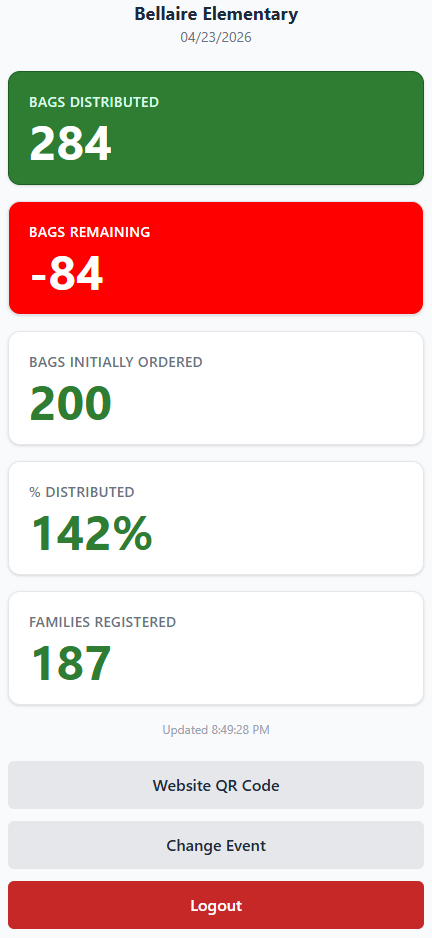
1. Overview
The Dashboard application is read-only — it does not allow editing of client records or check-in data. Its purpose is to answer questions like:
- → How many families did we serve at each location this month?
- → How many total food units were distributed across all events this year?
- → What is the breakdown of clients by qualification type (program, income, crisis)?
- → How has client participation changed over time?
- → Which locations serve the most families per event?
2. Login & Access
Dashboard access is granted to coordinators and authorized leadership. Contact your system administrator to request access.
- Navigate to the Dashboard application URL provided by your administrator.
- Enter your password.
- Tap Sign In.
- You are taken to the Dashboard home screen showing a summary of recent activity.
3. Event Summary
The Event Summary view shows aggregated statistics for a selected date or date range across one or all locations.
Key Metrics
247
Families Served
389
Meals Distributed
5
Locations Active
Using the Date Filter
- Select a Start Date and End Date using the date pickers at the top of the page.
- Optionally filter by a specific Location using the location dropdown.
- The metrics and charts update automatically to reflect your selected filters.
4. Location Reports
Location Reports break down activity by individual distribution site, helping coordinators understand which locations serve the most clients and how that changes over time.
Viewing a Location Report
- Navigate to Reports → By Location.
- Select a location from the list.
- Set the date range you want to analyze.
- The report shows a table of each event day with: families checked in, total food units, and the registrar(s) who worked that event.
Comparing Locations
The Location Comparison view plots all active locations side-by-side for a selected date range, making it easy to see which sites have the highest demand.
5. Client Trends
The Client Trends section provides visibility into client registration growth and repeat attendance over time.
New Registrations Over Time
A chart showing how many new client cards were created per month. Useful for understanding when community outreach efforts are having an impact.
Repeat Attendance
Shows how many clients are returning to events across multiple months vs. first-time attendees. Helps gauge ongoing community need.
Family Size Distribution
A breakdown of registered families by household size, giving insight into the demographic mix of clients being served.
6. Qualification Breakdown
Understand how clients are qualifying to receive food assistance — by government program enrollment, income verification, or crisis justification.
| Qualification Type | Programs Included | Card Duration |
|---|---|---|
| Program Enrollment | SNAP, SSI, TANF, NSLP, Medicaid | 12 months |
| Income Verified | Income ≤ H1640 threshold | 12 months |
| Crisis Justified | Documented crisis situation | 6 months |
The Qualification Breakdown chart displays the percentage of active cards in each category. A high percentage of crisis-justified cards may indicate a need to revisit outreach to program-enrolled populations.
7. Exporting Data
All reports in the Dashboard can be exported for use in external tools such as spreadsheets or grant reporting documents.
Exporting a Report
- Navigate to the report you want to export and apply your date/location filters.
- Tap the Export button in the top-right corner of the report.
- Choose your preferred format: CSV (for spreadsheets) or PDF (for print-ready reports).
- The file downloads to your device.